Git and GitHub
Git was originally invented by Linus Torvalds (also a founder of linux). It changed the way open software is developed. For example, Tensorflow project (deep learning software backed by Google) has >700 contributors and most of them are not Google employees (source: Tensorflow Dev Summit, February 2017).
We will be using a tiny fraction of git/GitHub functionality to collaborate and share our work. Read Chapter 1 in Jenny Brian’s Happy Git and GitHub for the useR.
If you got lost, her tutorial at rstudio::conf might help.
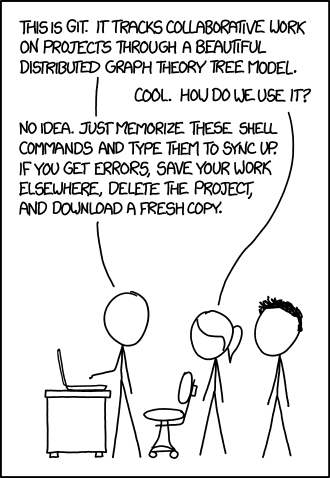
Before Challenge 1, sign up to github.com and install git.
Challenge 1:
Follow Chapter 13 Connect RStudio to Git and Github to create, clone, modify and push repository to GitHub.
Challenge 2:
Now, try to clone rladies repository praise. From RStudio menu choose File -> New Project -> Version Control -> Git. Fill “http://github.com/rladies/praise/” as Repository URL and “praise” as Project directory name. Praise is actually a package and you should see “Build” panel in the top right part of your RStudio, select “Rebuild and load”. Congratulation you have just clone and build the package. Call praise() function to say something nice. Finally, in praise project folder open R/adjective.R, add a new adjective and hit “Rebuild and load” again. You have just made a small contribution to praise. Call praise() again.
Challenge 3:
Use File -> Recent projects to switch back to Challenge 1 project. Create docs folder, copy one of your RMarkdown files and corresponding html file into it. Rename the html file to index.html. Commit all changes and push repository into GitHub. In GitHub, go to the repository and hit “Settings” link (github.com/USERNAME/REPOSITORY/settings). Scroll down to GitHub Pages. Select Source and change it from None to master branch /docs folder. After a few second you should be able to access your webpage at USERNAME.github.io/REPOSITORY.
RPubs
The easiest way to publish your Markdown is RPubs. Once your RMarkdown is generated, look for “Publish” button. You might need to create an account when doing it for the first time.
Challenge 4:
Publish your RMarkdown HTML output at RPubs.
GMD
GMD was recently developed by Lucy McGowan and Nick Strayer. Read
http://livefreeordichotomize.com/2017/02/24/intro-to-gmd/
and install GMD with devtools::install_github("LFOD/GMD").
Challenge 5:
Copy your RMarkdown to Google Docs and connect it with GMD to RStudio.